Why is my PowerPoint file so big after adding an iPhone video, and how to shrink it
Published 4 November 2026 · 6 min read
A presentation with a few slides and one iPhone video can weigh hundreds of megabytes, because PowerPoint stores the video inside the .pptx file and a phone records far more detail than a slide needs. The file then bounces from email, fails on a school or work upload form, or takes ages to open.
The fix is almost always the same: make the video smaller, then insert it. This guide shows how to confirm the video is the cause, what PowerPoint can do on its own, and how to shrink the clip on the iPhone first.
Why does one video make the whole file so big?
When you insert a video, PowerPoint embeds a copy of it in the presentation. The slides, text and pictures are small by comparison, so the video is usually nearly all of the file. A presentation is a zip-like package, and zipping it again does not help, because video is already compressed.
A phone clip is big for a slide because the camera records for a screen far larger than a projector slot. A short clip on a slide rarely needs 4K or 60 frames per second. As a rule of thumb, size in MB ≈ bitrate in Mbps × seconds ÷ 8, so halving the bitrate roughly halves the size.
How do I check that the video is the cause?
- 1On the computer, look at the .pptx file size in Finder or File Explorer.
- 2Save a copy, delete the video from the slide, save again and compare. If the file drops by almost the full amount, the video was the problem.
- 3Do the same for the clip on the iPhone: open it in Photos, tap the info button (the i in a circle) or swipe up, and read its size, resolution and frame rate.
What does PowerPoint’s own Compress Media do?
PowerPoint for Windows has a Compress Media command, found under File, Info once the deck contains a video. It offers three levels: Presentation Quality, Internet Quality and Low Quality, from the least to the most compression. It re-encodes the videos inside the file. Whether the command exists depends on your version and platform, and as far as Microsoft and several guides document it, the Mac version does not have it, so check your own menus.
It is a good last step on a Windows computer, but it has limits: it runs only after the big video is already in the deck, it gives you three fixed levels rather than a size you choose, and the result can look grainy on a large screen, so play it before the talk.
How do I shrink the video on the iPhone before inserting it?
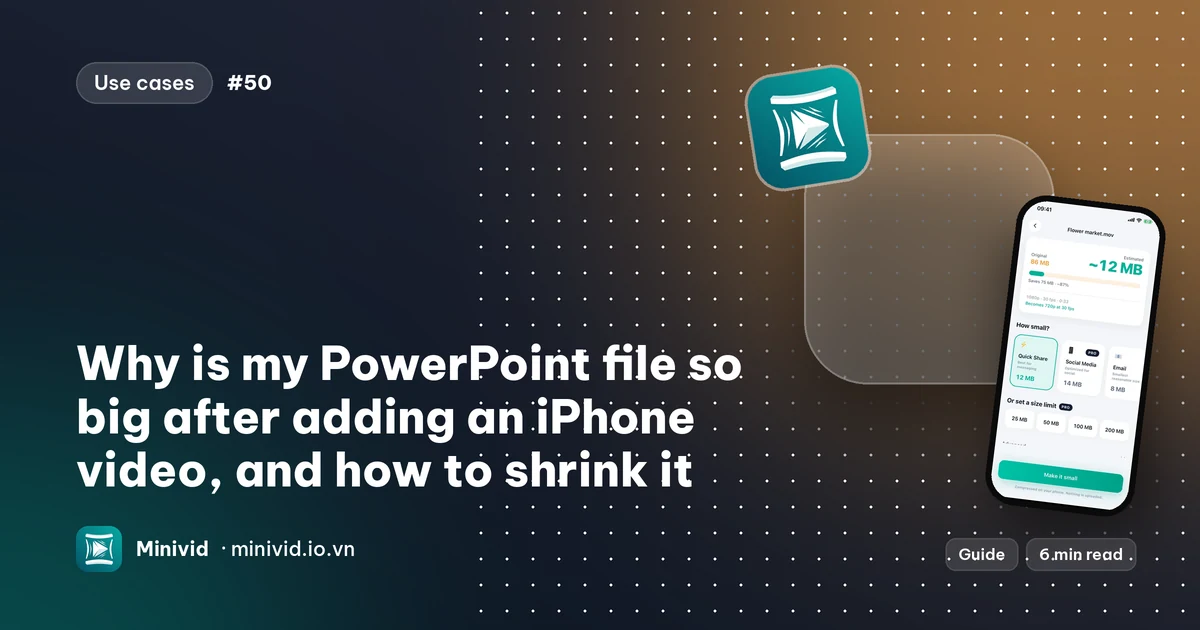
Doing it on the phone works on any computer and any version of PowerPoint, and the AirDrop or cloud transfer to the computer is faster too. Minivid, an iPhone app that compresses video on the phone, can do it. Menu wording can differ a little between iOS versions:
- 1Open Minivid and choose the video from your library.
- 2Look at the estimated size before anything starts. For a slide, the Quick Share preset (up to 720p, 30 frames per second) is usually plenty; Save Space is smaller still, and the exact-size option lets you aim at a number such as the upload limit.
- 3Compress, then play the result and check the picture, the sound and the end of the clip.
- 4Send the file to the computer from the share sheet, for example with AirDrop, or save it to Photos and sync it as you normally do.
- 5In PowerPoint, insert the smaller file with Insert, Video, This Device (the wording differs slightly between versions).
Minivid never changes the original, nothing is uploaded, and the result is an .mp4 that PowerPoint on Windows and Mac can play.
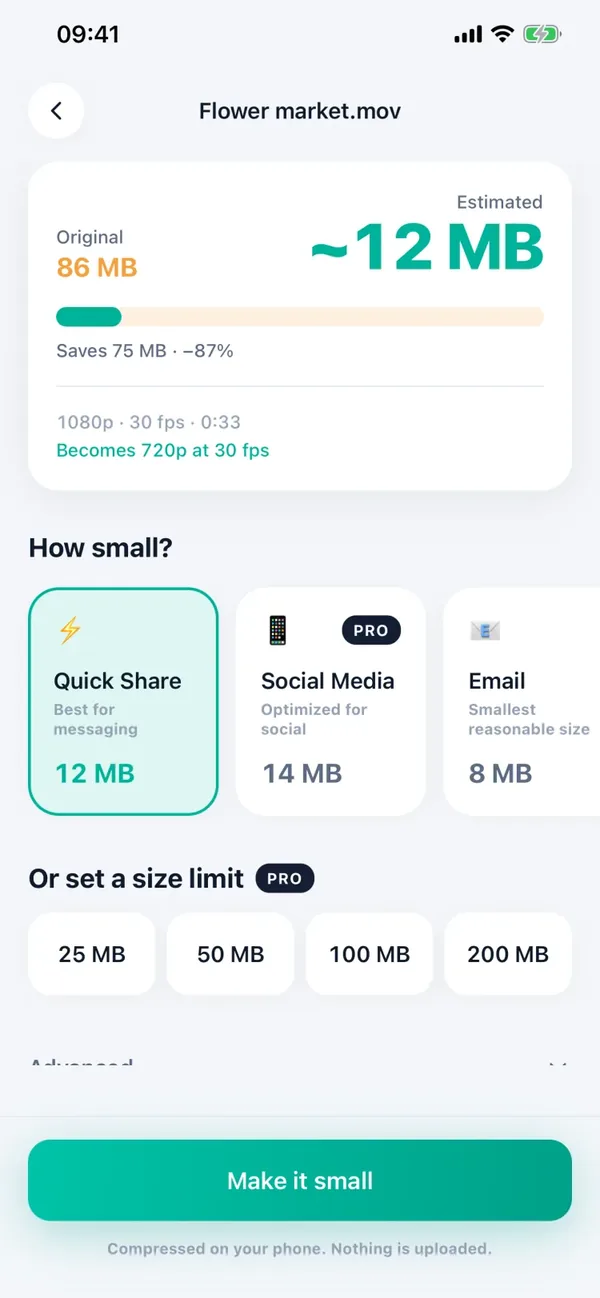
What does it cost, and what are the limits?
Seeing the estimated size is free. In the free version, Minivid compresses one video at a time, up to 100 MB, at up to 720p, with the Quick Share, Email and Save Space presets. That is enough for most slide videos. Pro removes the size limit, adds 1080p and 4K output, the Social Media preset and a size you name yourself.
If the clip is over 100 MB, trim it first in Photos (Edit, drag the handles, Save Video as New Clip), or use Pro.
Other ways to keep the deck small
- Trim the clip to the seconds you need. Fewer seconds is fewer megabytes.
- Link instead of embedding: put the video in a cloud folder and add a link on the slide. The file stays small, but the video then needs an internet connection and the right sharing permission.
- Keep one copy: if the same clip is on several slides, the deck may carry it more than once, so reuse a single slide.
- If the people receiving the file only need to watch, export the presentation as a video or PDF and send that, or share the deck through OneDrive or another cloud drive.
- Test on the real computer before an important talk, with the smaller file embedded, not just on your own laptop.
Frequently asked questions
Why is my PowerPoint so big with a video in it?
PowerPoint embeds a full copy of the video in the file, and an iPhone clip is recorded at far more detail than a slide needs. The video is usually almost the whole file.
Does zipping a PowerPoint make it smaller?
Barely. A .pptx is already a compressed package and video does not compress further, so the size hardly changes. Shrink the video itself instead.
Can I compress the video inside PowerPoint?
In PowerPoint for Windows, File, Info, Compress Media offers Presentation, Internet and Low Quality. The command depends on your version and may be missing on the Mac, so shrinking the video on the iPhone first is the more reliable route.
What resolution should a video in a presentation be?
720p is usually enough for a clip on a slide; use 1080p only if it fills a large screen and the detail matters. Play it on the real display before the talk.
Is Minivid free for this?
Within the free limits: one video at a time, up to 100 MB, at up to 720p. Pro removes the limits and adds 1080p, 4K and an exact size.
Want to know the size before you compress?
Minivid compresses video on your iPhone and shows the final size before it starts. Your videos are never uploaded.