Does compressing a video twice ruin the quality? What to do on iPhone
Published 5 November 2026 · 5 min read
Short answer: yes, a second compression costs more quality, but one careful pass from the original is usually fine, and the damage comes mainly from stacking passes on a copy that was already squeezed. Lossy video compression works by throwing information away, and the next encoder has no way to bring it back.
This guide explains when a second pass is harmless, when it shows, how to check a clip before you compress it again, and how to get a smaller file without piling up generations on your iPhone.
Why does a second compression lose more quality?
Video compression is lossy: the encoder keeps what it judges you will notice and drops the rest. The second encoder starts from the already reduced picture, treats its blocky edges and soft detail as real content, and removes more on top. Fine detail that is gone stays gone, and small artefacts can grow with each pass.
How much you lose depends on the settings. Adobe’s guidance for its encoder says the same: each lossy export lowers quality, one generation is often acceptable, and repeatedly re-encoding already compressed video can degrade it beyond what is acceptable. Changing codec or settings between passes tends to add to it.
When is a second pass harmless, and when does it show?
- Usually fine: one pass from the original recording to a sensible size, watched on a phone or laptop.
- Usually fine: a second pass that only changes something other than the picture quality, such as trimming, if the copy still looks clean.
- Often visible: a clip that already went through a chat app, a social app or a screen recording and is now compressed again at a low setting. Dark scenes, fast motion, text and faces show blockiness and smearing first.
- Never helpful: compressing again at a higher setting than the file already has. The picture does not get its detail back and the file can even get bigger, as in the guide on why a compressed video can be bigger than the original.
There is no fixed number of times that is safe. A clean, high-quality source survives a pass better than one that was already soft.
How do I check whether a clip was already compressed?
- 1Think about where it came from. A video you recorded with the camera is an original. One you saved from a chat, a download or a social app was almost certainly re-encoded on the way.
- 2Open it in Photos and tap the info button (the i in a circle) or swipe up to see its size, then compare it with how long the clip is. A few megabytes for a minute of video means it is already small.
- 3Play it full screen, looking at dark areas, text and quick movement. If it already looks soft or blocky, a further pass will make that worse, so skip it or keep the settings the same.
How do I get a smaller file without compressing twice?
- Always start from the original. If the first result is still too big, go back to the original video in your library and compress that again with a lower setting, instead of compressing the copy.
- Change everything in one pass. Resolution, frame rate and size target together in a single encode cost less than three encodes in a row.
- Trim before you compress, and keep the length to what the person needs. Fewer seconds is a smaller file with no quality cost at all.
- Pick the setting for where the video will be watched. 720p is usually enough for a chat or a slide; keep 1080p or higher for a big screen.
- Do not send the compressed copy through an app that squeezes it again if you can avoid it. Many chat apps re-encode video, so a smaller file that the app leaves alone often arrives looking better.
- Keep the original until you have watched the copy. Delete it only when you are sure.
How does Minivid fit in?
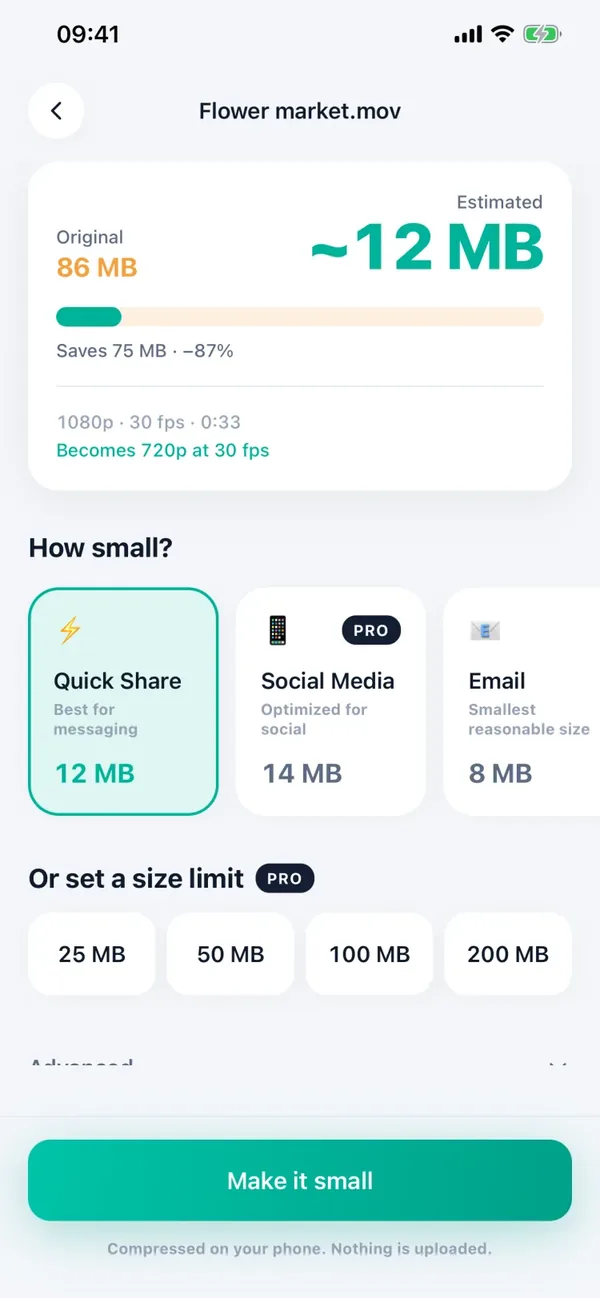
Minivid, an iPhone app that compresses video on the phone, is built around the original: you pick a video, it shows the estimated size before anything starts, and the result is saved as a new copy. It never changes the original, so you can always go back to it and try a different setting from the same starting point. Menu wording can differ a little between iOS versions.
- 1Open Minivid and choose the original video from your library, not an earlier compressed copy.
- 2Look at the estimated size. Change the preset, the resolution or the frame rate until the number is right; the estimate updates as you do.
- 3Compress, then play the result full screen and check dark scenes and movement.
- 4If it is still too big, go back to the original and choose a smaller setting. If it looks good, save it to Photos or share it.
Nothing is uploaded; everything runs on the iPhone.
What does it cost, and what are the limits?
Seeing the estimated size is free. In the free version, Minivid compresses one video at a time, up to 100 MB, at up to 720p, with the Quick Share, Email and Save Space presets. Pro removes the size limit, adds 1080p and 4K output, the Social Media and Keep Quality presets, and lets you name an exact size.
If you tap Replace original after compressing, Minivid saves the copy first and only then asks iOS to delete the original, which then waits in Recently Deleted for 30 days. Check the copy before you do that, because with the original gone you cannot go back for a better pass.
Frequently asked questions
Does compressing a video twice reduce quality?
Yes, each lossy pass removes a little more detail. One pass from the original at a sensible setting is usually fine; stacking passes, especially on a clip that was already compressed, is what shows.
Can I restore quality after compressing a video?
No. Compression throws information away and a later pass cannot recreate it. That is why you keep the original and compress from it.
Is it better to compress once at a low setting or twice at a medium one?
Once, from the original. A single encode that goes straight to the size you need loses less than two encodes in a row.
Does Minivid compress from the original or from my last result?
From the video you choose. It saves the result as a new copy and does not change the original, so you can pick the original again and try a different setting.
Is Minivid free for this?
Within the free limits: one video at a time, up to 100 MB, at up to 720p. Pro removes the limits and adds 1080p, 4K and an exact size.
Want to know the size before you compress?
Minivid compresses video on your iPhone and shows the final size before it starts. Your videos are never uploaded.